Steps to Submit Your Website to Google
Submitting your website to Google is an essential step for website owners and SEO professionals alike.
By submitting your site, you are making sure that Google knows about it and can consider it when evaluating your website's content. Additionally, submitting your site to Google will help ensure that all of your pages are indexed and available for users to find
When submitting a website to Google, it is necessary to create a Search Console account.
Follow these steps:
1. Get a Google account if you don't already have one.
2. If you already have an account, go straight to the Google Search Console account here:
3. Enter your domain name and click Continue to verify your domain.
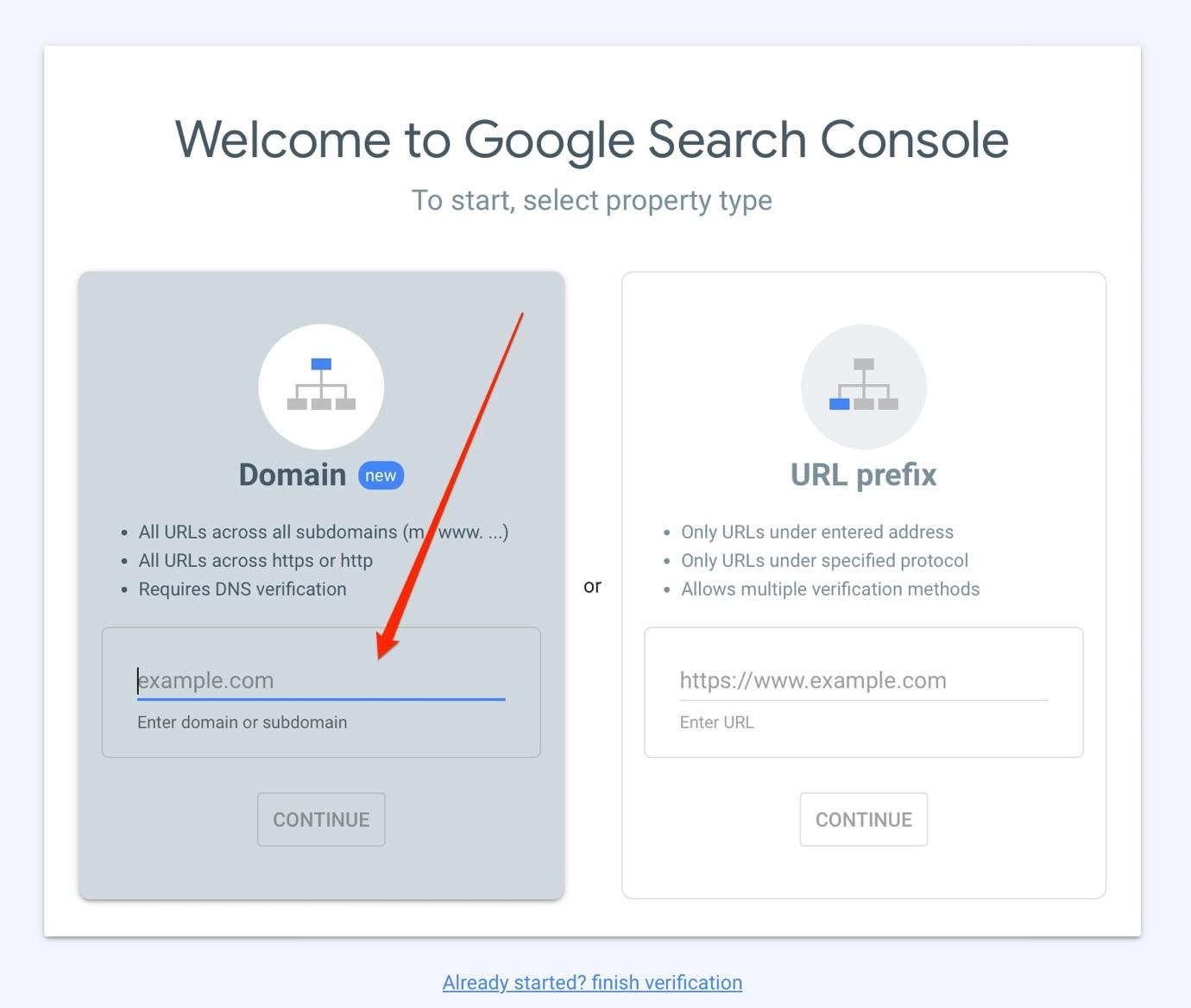
4. Once you have verified your website, log in to the Search Console for your site in the upper lefthand corner of your screen.
5. Below the domain name, click on the option “sitemaps’
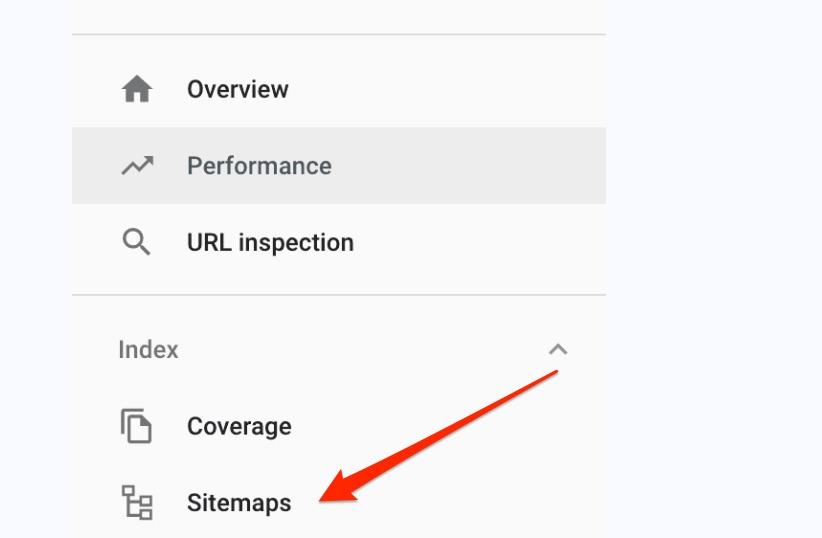
5. Submit your sitemap following this format : https://sitename.ie/sitemap.xml. (To get your own website’s sitemap replace ‘sitename.ie’ with your own domain name.)
Congratulations! Your website has been successfully submitted to Google!
Please note that it may take up to 24 hours for your site to go live on Google. To check if your site is active, simply enter your domain URL in the search bar as this:
site: https://yourwebsitedomain.ie/
Related Articles
How can I add a link from my Business Profile to my website?
How can I add a link from my Business Profile to my website? If you have your own website, we can help you improve its google rank by linking to it from our site. You can easily add a link it yourself with these quick steps: Login to your account ...What's the difference between my Onlinetradesmen Business Profile and a Website?
What's the difference between my Onlinetradesmen Business Profile and a Website? How you look to customers is vital when replying to a job. When customers see your reply they will see: A link to your Business Profile A link to your Website, if you ...Where do I update my Business Profile?
Where do I update my Business Profile? You can update your business profile at any time: Go To Growth Hub. Click on 'Your Business Profile' Click the 'Edit Text' or 'Add photos' button to make your changes Make sure to save you changes and click the ...How can I view my business profile?
How can I view my business profile? To view your profile: Click Growth Hub Click Your Business Profile Click View ProfileHow can I show customer ratings on my website?
How can I show customer ratings on my website? You've worked hard to win strong customer ratings - now it's time to put them to work for you! Customer ratings are displayed on your Business Profile page for customers to view when you reply to a job. ...